 DevEdge

Few things do more quiet damage to a business than important emails landing in a customer’s junk folder. Quotes go unseen, invoices are missed and enquiries go unanswered, often without anyone noticing for weeks.
It’s usually not bad luck. The big mailbox providers have tightened their rules: Google and Yahoo began enforcing sender requirements in February 2024, and Microsoft followed for Outlook.com from May 2025. If your domain isn’t properly authenticated with SPF, DKIM and DMARC, your messages are far more likely to be filtered as junk or rejected.
Here’s a plain-English explanation of what these three DNS records do, why legitimate business email fails, and how to fix your domain.
What the mailbox providers now require
- Google (Gmail): since 1 February 2024, everyone sending to personal Gmail accounts must set up SPF or DKIM, and anyone sending more than 5,000 messages a day must use SPF, DKIM and DMARC. See Google’s email sender guidelines.
- Yahoo: enforcement of similar rules began in February 2024. Bulk senders need SPF and DKIM, plus a DMARC policy of at least
p=none, with the From domain aligned. See Yahoo’s sender best practices. - Microsoft (Outlook.com, Hotmail and Live addresses): from 5 May 2025, domains sending more than 5,000 emails a day must pass SPF, DKIM and DMARC (at least
p=none, aligned with SPF or DKIM). Microsoft’s announcement was updated on 29 April 2025 to say non-compliant messages will be rejected with the error550 5.7.515.
Even if you send far less than 5,000 emails a day, getting these records right is the simplest way to stay out of the junk folder, and the thresholds tell you where the providers are heading.
How email authentication works
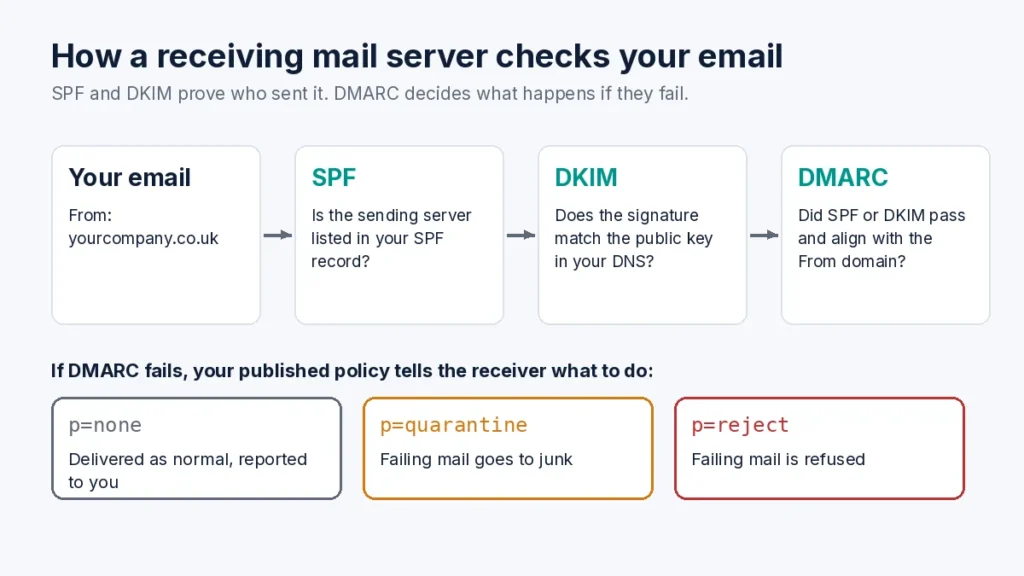
Email was designed without any built-in way to prove who sent a message, so anyone could send mail claiming to be from your domain. Three DNS records fill that gap:
1. SPF (Sender Policy Framework): who can send
SPF is a single TXT record in your domain’s DNS that lists the servers and services allowed to send email for your domain. When a receiving server gets a message from your domain, it checks whether the sending server is on that list. If it isn’t, SPF fails.
2. DKIM (DomainKeys Identified Mail): proof the message is genuine
DKIM adds a digital signature to each message. The receiving server looks up a public key in your DNS and uses it to check the signature. If it matches, the receiver knows the message was sent by an authorised system and wasn’t altered on the way.
3. DMARC: what to do when checks fail
DMARC ties SPF and DKIM to the domain your recipients actually see in the From address (this is called alignment). It tells receiving servers what to do with mail that fails, and it sends you aggregate reports showing every service sending email in your name.
The common mistake: forgotten senders
Most businesses send email from more places than they realise:
- day-to-day email from Microsoft 365 or Google Workspace
- contact form notifications and order emails from your WordPress website
- newsletters from Mailchimp, Klaviyo or similar
- online shop platforms such as Shopify or BigCommerce sending order emails from your domain
- invoices from Xero or QuickBooks
- notifications from a CRM such as HubSpot
If your SPF record only covers Microsoft 365, but Xero sends an invoice using your accounts address, that invoice can fail authentication and land in your customer’s junk folder.
Step-by-step: fixing your domain
Step 1: List everything that sends email for your domain
Before changing DNS, make a list of every tool, server and platform that sends email using your domain. Missing one billing system or contact form is enough to cause problems.
Step 2: Publish one valid SPF record
A domain must have only one SPF record. Two TXT records that both start with v=spf1 make SPF fail. Combine every authorised service into a single record, for example:
v=spf1 include:spf.protection.outlook.com include:sendgrid.net ip4:192.0.2.1 -allSPF has a hard limit of 10 DNS lookups (RFC 7208, section 4.6.4). It isn’t just your own include entries that count: every include, a, mx, ptr, exists and redirect counts, including the ones nested inside your providers’ records. Go over the limit and receivers return a permerror, which means SPF fails for everything. Remove services you no longer use and check the total with an SPF checking tool.
Step 3: Turn on DKIM for every sending service
In each sending service (Microsoft 365, Google Workspace, your newsletter platform, your website’s SMTP provider), turn on DKIM signing for your domain and publish the CNAME or TXT records it gives you. Use 2048-bit keys where the service offers them.
Step 4: Start DMARC in monitoring mode
Don’t start with a strict DMARC policy. Begin with p=none so you can collect reports and find unauthenticated senders without blocking anything:
Host: _dmarc
Type: TXT
Value: v=DMARC1; p=none; rua=mailto:dmarc-reports@yourcompany.co.uk
Replace the reporting address with a mailbox you actually check, or a DMARC reporting service. Review the reports for a few weeks. Once all your legitimate email passes, move to p=quarantine (failing mail goes to junk) and eventually p=reject (failing mail is refused).
Website and WooCommerce emails
WordPress sends contact form notifications, password resets and WooCommerce order emails using the web server by default. That mail often isn’t covered by your SPF record and isn’t DKIM-signed for your domain, so it’s a common reason order confirmations end up in junk.
The fix is to send website email through an authenticated service instead: an SMTP plugin (such as FluentSMTP or WP Mail SMTP) connected to Microsoft 365, Google Workspace or a transactional email service, with DKIM set up for your domain. Our website support team can set this up and check it keeps working after updates, and our WooCommerce hosting is built for the busy, uncached side of a shop. For more on what shops need from a server, read why cheap hosting fails WooCommerce, and our website maintenance guide includes checking that forms and checkout still work as a regular task.
Moving hosts? Don’t break your email
Changing web host or DNS provider is one of the most common times for MX, SPF and DKIM records to go missing. Copy every email-related DNS record before you switch. Our guide to moving your website to a new host covers this step by step.
Professional domain and email management
Email authentication across several services needs care: a single typo in a DNS record can quietly stop mail getting through. Our domain and business email services cover DNS, mail routing and authentication, and if your emails are already landing in spam, get in touch and we’ll audit your setup.
Frequently asked questions
Yes. The strictest rules apply to bulk senders, but Gmail requires SPF or DKIM from every sender, and all three records make it much less likely your mail is treated as junk or spoofed.
No. A domain must have a single SPF record. If you publish two TXT records starting with v=spf1, SPF fails. Combine them into one.
Receivers will only follow 10 DNS lookups when checking SPF. Every include, a, mx, ptr, exists and redirect counts, including nested includes inside your providers’ records. Going over the limit causes a permerror.
No. Start with p=none and read the reports until all your legitimate senders pass, then move to quarantine and finally reject.
