 DevEdge

A website isn’t something you build once and forget. Like a vehicle, it needs regular care to stay secure, fast and reliable. Regular maintenance keeps your site working properly and protects your business. Here’s why it matters, what a sensible routine looks like, and what to do when something breaks.
What can go wrong if you skip maintenance
Security risks increase
Outdated software is one of the most common ways websites get hacked. If plugins, themes or WordPress itself aren’t updated, known vulnerabilities pile up, and automated attacks look for exactly those. Our website support services include security checks and updates that reduce that risk.
Broken features and errors
Websites rely on many moving parts working together. Over time, things drift: a payment gateway changes its API, a plugin is abandoned, or an update clashes with your theme. Contact forms stop sending, links fail or layouts break, often without anyone noticing until a customer complains.
Slower performance over time
Old code, unused plugins and database bloat can gradually slow your site down. One common culprit is autoloaded data that builds up in the WordPress database; our guide to cleaning up WordPress database bloat explains how to find and fix it.
Missed SEO opportunities
Search engines favour sites that are fast, secure and reliable. A neglected site with errors, broken links and slow pages can slip in the rankings, meaning fewer people find your business. Our SEO services can help keep your site search-friendly and visible.
Risk of data loss
Without working backups, a hacked or broken site can mean lost orders, lost content and rebuilding from scratch. Backups are only useful if they run, are stored off the server, and can actually be restored.
A practical website maintenance checklist
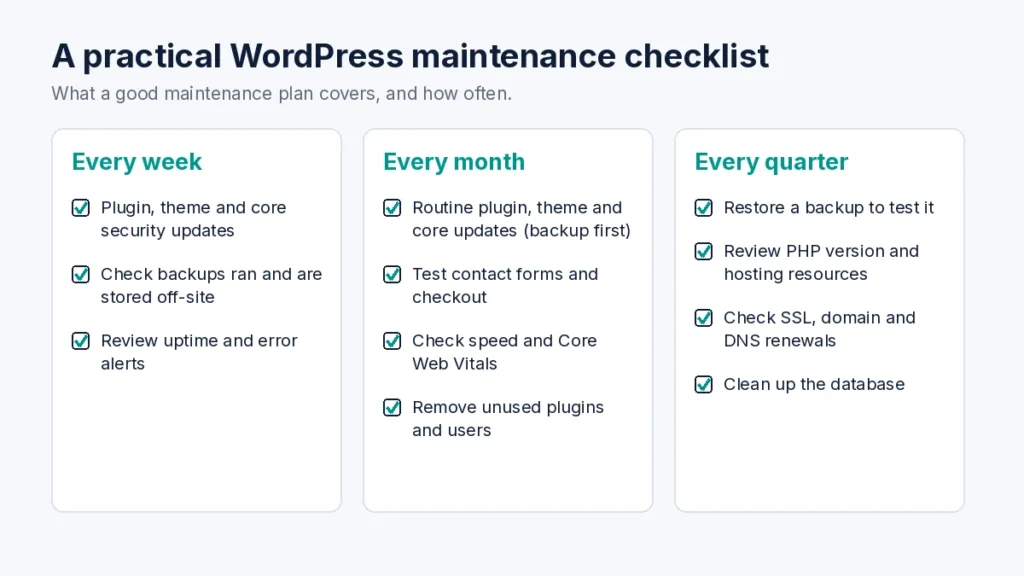
Weekly
- Check that the site loads and that key forms, logins and checkout work.
- Review and apply plugin, theme and WordPress updates (after taking a backup).
- Check backups have completed.
- Glance at uptime and security alerts.
Monthly
- Test a backup restore, or at least confirm a recent backup can be downloaded and opened.
- Review WordPress Tools > Site Health for warnings (what Site Health checks).
- Remove plugins and themes you no longer use.
- Check page speed on your most important pages.
- Look for broken links and 404 errors.
Quarterly
- Review user accounts and remove anyone who no longer needs access.
- Check your PHP version is still supported (see PHP’s supported versions and WordPress’s recommended requirements).
- Review the database for bloat and expired data.
- Check your SSL certificate, domain renewal and email authentication records.
How often should you update WordPress?
By default, WordPress installs minor maintenance and security releases automatically (how automatic updates work). Major releases, plugins and themes are different: you choose when to update them, although WordPress lets you turn on automatic updates for individual plugins and themes.
A sensible approach for most business sites:
- Security fixes: apply as soon as possible, especially for plugins with a published vulnerability.
- Routine plugin and theme updates: check at least weekly, and apply after taking a backup.
- Major WordPress releases: test on a staging copy first if your site is complex or runs a shop, then update once you’re happy.
- WooCommerce and payment plugins: test checkout after every update.
Automatic updates are convenient, but on a shop or a heavily customised site an untested update can break things when nobody’s watching. That’s why managed plans that take a backup first and can roll back are worth considering. Our managed WordPress hosting does backup-first updates with automatic rollback.
What to do when your website breaks
- Don’t panic, and don’t start changing things at random. Note what you see, when it started and what changed recently (an update, a new plugin, a hosting change).
- Check whether it’s the whole site or one feature. Try another device and network, and check your host’s status page.
- Look for the “critical error” email. Since WordPress 5.2, a fatal error triggers an email to the site admin with a recovery mode link, so you can log in and disable the plugin or theme causing it.
- Roll back the most recent change. If an update caused the problem, restoring the previous version or a backup is usually the fastest fix.
- Restore from a backup if needed, but be aware you may lose orders or content added since the backup was taken.
- Get help quickly if it’s costing you money. If your site or checkout is down and you need an engineer now, our 24/7 Emergency Response service puts an engineer on qualifying critical issues within 2 hours.
Doing it yourself vs a support plan
You can absolutely maintain a small site yourself if you have the time and follow a routine like the one above. The risk is that maintenance is easy to put off, and problems tend to surface at the worst moment.
Our website support plans start from £49 a month and cover WordPress core, plugin and theme updates, scheduled off-site backups, uptime monitoring and fixes for issues caused by routine updates. For online shops, the same plans look after WooCommerce, plugin and theme updates, alongside our WooCommerce hosting.
Not sure what state your site is in? Our website health check reviews updates, plugin risks, backups, security and performance, and you get the findings whether or not you go ahead with support.
Final thoughts
Regular maintenance is the difference between a website that works for your business and one that holds it back. With DevEdge Ltd, you can have peace of mind knowing your site is fast, secure and fully supported while you focus on growing your business.
