 DevEdge
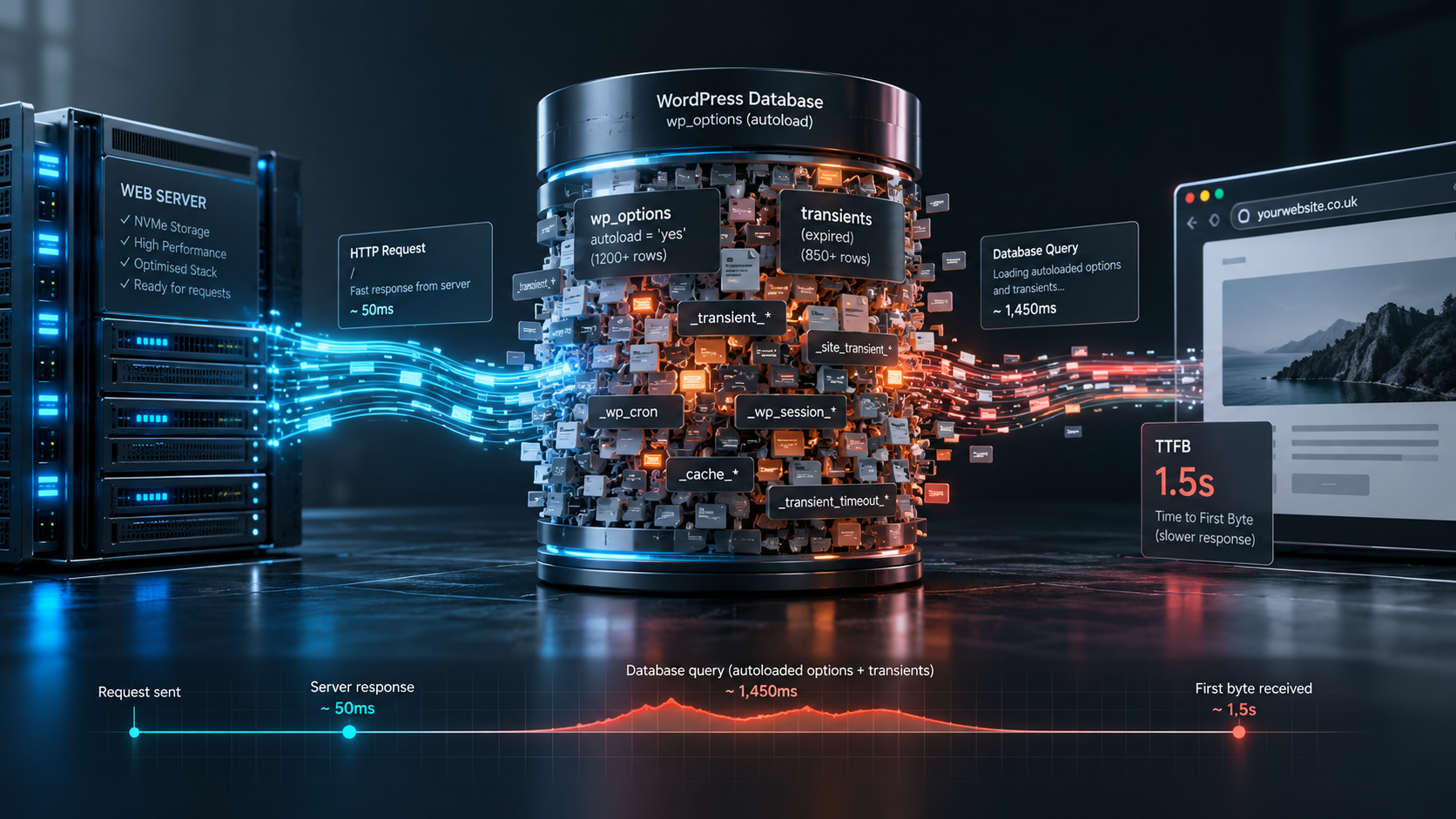
It’s a familiar situation. You’ve moved to fast NVMe hosting, set up a caching plugin and compressed your images, yet the uncached parts of your site are still sluggish: the WordPress admin, WooCommerce basket and checkout, and filtered product searches all take too long to start loading. In other words, your Time to First Byte (TTFB) is high wherever the page cache can’t help.
On many mature WordPress sites, the bottleneck isn’t the server hardware. It’s database bloat, and in particular large amounts of autoloaded data, expired transients and settings left behind by old plugins in the wp_options table.
Here’s how autoloaded options work, why they slow your site down, and how to audit and clean them safely on current versions of WordPress.
How autoloaded options work
The wp_options table stores site settings: your site URL, active plugins, theme options and plugin configuration. Early in every request, before your theme runs, WordPress loads every option marked for autoloading in a single query and keeps it in memory for the rest of the request.
That’s efficient when the autoloaded data is small. When it grows to several megabytes, the database has to send all of it, and PHP has to load and unserialise it, on every uncached request. Page caching hides this from logged-out visitors, but your admin users, customers in the checkout and anyone else who bypasses the cache pay the cost every time. If you’re running a shop, our guide to why cheap hosting fails WooCommerce explains which pages are always uncached.
What changed in WordPress 6.6
Older guides (including the first version of this one) assume the autoload column only contains yes or no. Since WordPress 6.6, it can contain:
onandoff: an explicit choice by the plugin or themeauto: no explicit choice; WordPress decidesauto-onandauto-off: WordPress’s own decision, for exampleauto-offfor large options
WordPress still treats the legacy yes and no values as on and off. It now also avoids autoloading new options larger than 150 KB unless the plugin explicitly asks for it, and Site Health shows a critical issue called “Autoloaded options could affect performance” when the total autoloaded size goes over 800 KB. Queries that only look for autoload = 'yes' will under-count on a modern site.
How autoloaded options become bloated
WordPress core is rarely the problem. The usual causes are:
- Plugins removed without cleaning up. Many plugins leave their settings in
wp_optionswhen deleted. After a few years of trying and removing plugins, a site can carry a lot of orphaned options. - Using
wp_optionsas a cache. Some themes and plugins store large API responses or serialised arrays as options and mark them to autoload. - Expired transients. Transients are temporary cached values with an expiry date. Expired transients are deleted when they’re next requested, and WordPress also runs a daily scheduled task,
delete_expired_transients(), to clear them out. If WP-Cron isn’t running reliably, or a plugin creates transients without an expiry, they can still pile up.
How to audit your autoloaded data safely
Always take a full database backup before changing anything. If you’d rather not touch the database yourself, our website health check includes this kind of review.
Step 1: Check Site Health
In the WordPress admin, go to Tools > Site Health. If you see “Autoloaded options could affect performance”, your autoloaded data is over the 800 KB threshold. The Site Health screen documentation explains the other checks on that page.
Step 2: Measure the total autoloaded size
In phpMyAdmin, or over SSH, run this query (change wp_ if your table prefix is different):
SELECT ROUND(SUM(LENGTH(option_value)) / 1024) AS autoload_size_kb
FROM wp_options
WHERE autoload IN ('yes', 'on', 'auto-on', 'auto');
These are the values WordPress loads by default. The result is in kilobytes.
Step 3: Find the largest autoloaded options
SELECT option_name, autoload, ROUND(LENGTH(option_value) / 1024, 1) AS size_kb
FROM wp_options
WHERE autoload IN ('yes', 'on', 'auto-on', 'auto')
ORDER BY LENGTH(option_value) DESC
LIMIT 20;
Look carefully at the top results. You’ll often find settings from plugins you removed long ago, or large cached data that doesn’t need to load on every page.
Step 4: Clean up carefully
- Options from plugins you no longer use: once you’re sure the plugin is gone for good, these rows can be deleted. If in doubt, search the option name to identify which plugin created it.
- Large options from active plugins: if they aren’t needed on every page, set their autoload value to
offrather than deleting them. The plugin can still read the option when it needs it. - Expired transients: clear them with a maintenance plugin or WP-CLI.
Then re-run the queries and check Site Health again.
WP-CLI equivalents
If you have SSH access, WP-CLI is quicker and safer than editing tables by hand:
# Back up the database first
wp db export before-cleanup.sql

# Stop a large option from autoloading (replace the option name)
wp option set-autoload example_plugin_cache off

# Delete expired transients
wp transient delete --expired
See the WP-CLI documentation for wp option set-autoload and wp transient delete.
Keeping your database healthy
A fast site needs a tidy database as much as lean front-end code. Routine maintenance should include checking autoloaded data, clearing expired transients, limiting post revisions and making sure WP-Cron actually runs. Our article on why your website needs regular maintenance covers the rest of a sensible maintenance plan.
For shops, slow checkouts often come from a mix of database bloat and too few PHP workers. Our WooCommerce hosting includes Redis object caching and tuned MariaDB, and our website support and maintenance service includes routine database care. Slow sites aren’t always the database, either. Emails from your forms and shop can be just as fragile, so it’s worth reading our guide to SPF, DKIM and DMARC too.
Site down or crawling after a change? Our 24/7 Emergency Response service puts an engineer on qualifying critical issues within 2 hours.
