 DevEdge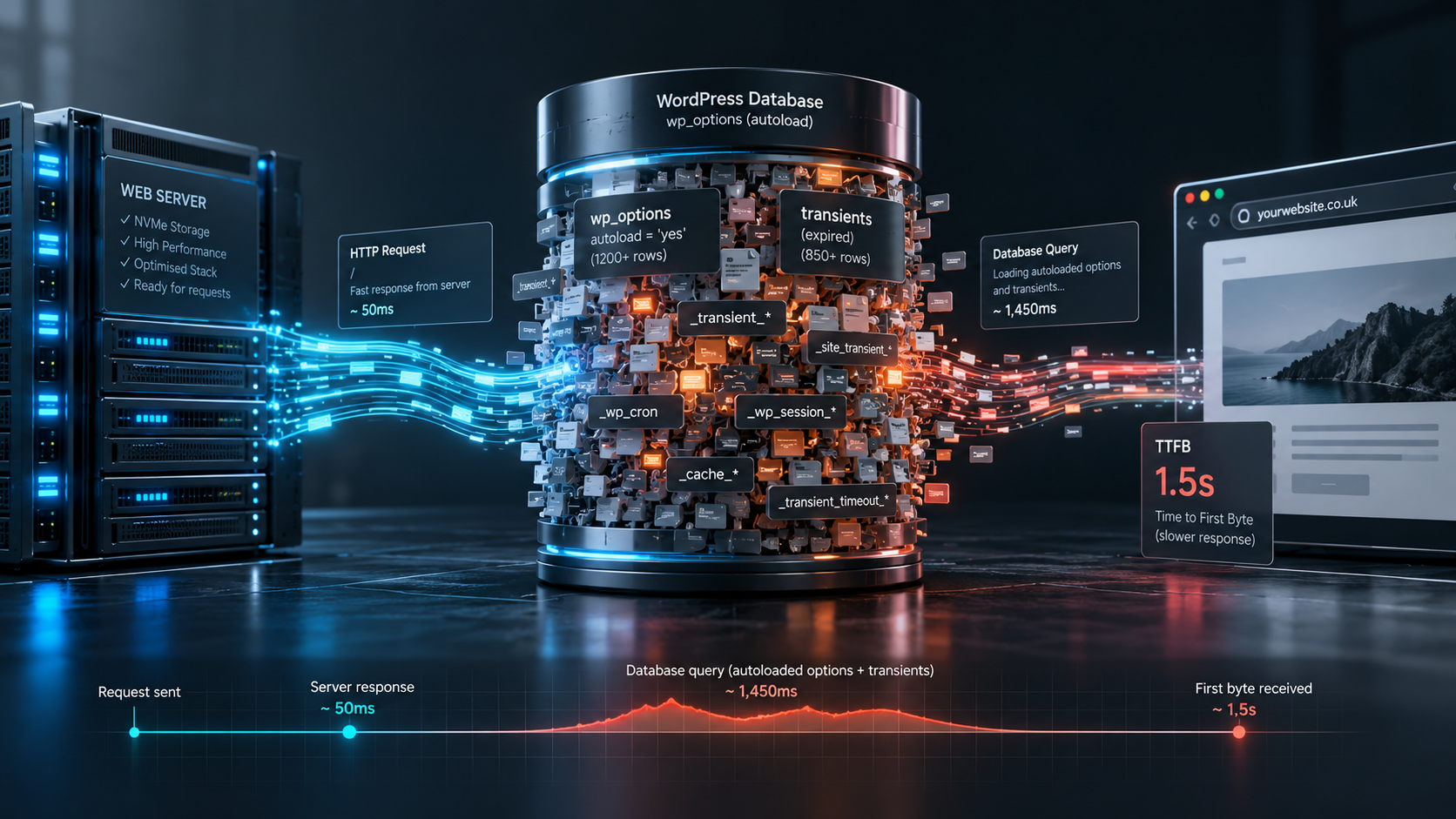
It is a scenario familiar to many website administrators: you have upgraded to high-performance NVMe cloud hosting, configured an enterprise caching plugin, and compressed all your images, yet un-cached requests (including the WordPress admin, WooCommerce checkout sessions, and dynamic filter queries) still suffer from sluggish Time to First Byte (TTFB) exceeding 1.5 seconds.
In the majority of mature WordPress sites, the underlying bottleneck is not the server hardware; it is invisible database bloat. Specifically, the accumulation of megabytes of obsolete autoloaded data, abandoned transients, and orphaned plugin settings inside the wp_options table.
Here is an engineering explanation of how autoloaded options work, why they cripple website responsiveness, and how to safely audit and clean your WordPress database.
The Mechanics of Autoloaded Options
To understand why database bloat causes severe performance degradation, consider how WordPress handles the wp_options table on every single HTTP request.
The wp_options table stores configuration settings: site URL, active plugins, theme options, and plugin parameters. When a page is requested, WordPress executes a core query before executing any theme or template code:
SELECT option_name, option_value FROM wp_options WHERE autoload = 'yes'Notice the condition: autoload = 'yes'. WordPress loads every single autoloaded option into server memory on every single page load. If an option is set to autoload, WordPress assumes it is needed immediately.
The Threshold for Performance Health:
- Healthy WordPress Site: Total autoloaded data is typically between 300 KB and 800 KB.
- Warning Zone: Autoloaded data between 800 KB and 1.5 MB.
- Severe Bottleneck: Autoloaded data exceeding 2 MB+ (we regularly audit sites carrying 5 MB to 15 MB of autoloaded data).
When autoloaded data exceeds 2 MB, the database server must transfer that data, and PHP must allocate memory and parse it on every un-cached execution. This adds 300ms to 800ms of pure latency before a single line of your page template even executes.
How Do Autoloaded Options Become Bloated?
WordPress itself is not responsible for this bloat; the culprits are typically third-party plugins and poor cleanup routines:
- Uninstalling Plugins Without Cleaning Settings: When you delete a WordPress plugin from the admin panel, many plugins leave all their configuration records in
wp_optionswithautoload = 'yes'. Over four or five years of installing and testing plugins, a site accumulates hundreds of orphaned options. - Abusing wp_options as a Cache Store: Some poorly coded themes and plugins store serialized API responses, remote transient data, or large configuration arrays inside
wp_optionsand mistakenly mark them as autoloaded. - Orphaned Transients: Transients are temporary cached data (e.g., currency exchange rates or social feed caches). While transients have expiration dates, expired transients are only cleaned up when accessed. If a plugin is removed, its transients may remain in the database permanently.
How to Audit Your Autoloaded Data Safely
Step 1: Check Total Autoloaded Size via SQL
Log in to your database administration tool (such as phpMyAdmin or via SSH) and run the following query to determine the total size of your autoloaded options:
SELECT SUM(LENGTH(option_value)) / 1024 AS autoload_size_kb
FROM wp_options
WHERE autoload = 'yes';
If the resulting number is greater than 1,000 KB (1 MB), your database has significant optimization potential.
Step 2: Identify the Largest Individual Autoloaded Rows
Next, identify which specific options are consuming the most memory:
SELECT option_name, LENGTH(option_value) / 1024 AS option_size_kb
FROM wp_options
WHERE autoload = 'yes'
ORDER BY option_size_kb DESC
LIMIT 20;
Look carefully at the top results. You will often spot settings from plugins deactivated two years ago, or massive serialized arrays from old themes.
Step 3: Clean Orphaned Data Safely
Crucial Rule: Always take a complete database backup before modifying database records.
- For options belonging to plugins you no longer have installed, delete the rows entirely.
- For options belonging to active plugins that are large but do not need to load on every single page, change their autoload status from
'yes'to'no'. When the plugin requires that setting, it can still query it on demand without forcing it into memory on every global request.
Ongoing Database Health and Optimization
A fast website requires clean database architecture just as much as lean frontend code. Routine maintenance should include weekly transient cleanups, monthly revision pruning, and database index optimization.
At DevEdge, our website support and maintenance service includes continuous database monitoring, optimizing autoloaded data and eliminating query bottlenecks. Paired with our high-speed managed hosting, we ensure your backend executes queries in single-digit milliseconds.
